
Charge for your course with your own Stripe Payment Link
The Inbox Academy app is now available on the Stripe App Marketplace. Connect it to your Stripe account, put your own Payment Link behind a gate in your course, and a completed payment opens the gate on its own. No Zapier step, no webhook code.
Your learners pay you directly, in your Stripe account. Inbox Academy doesn't sit in the middle of the payment and doesn't take a cut of it.
What a gate is
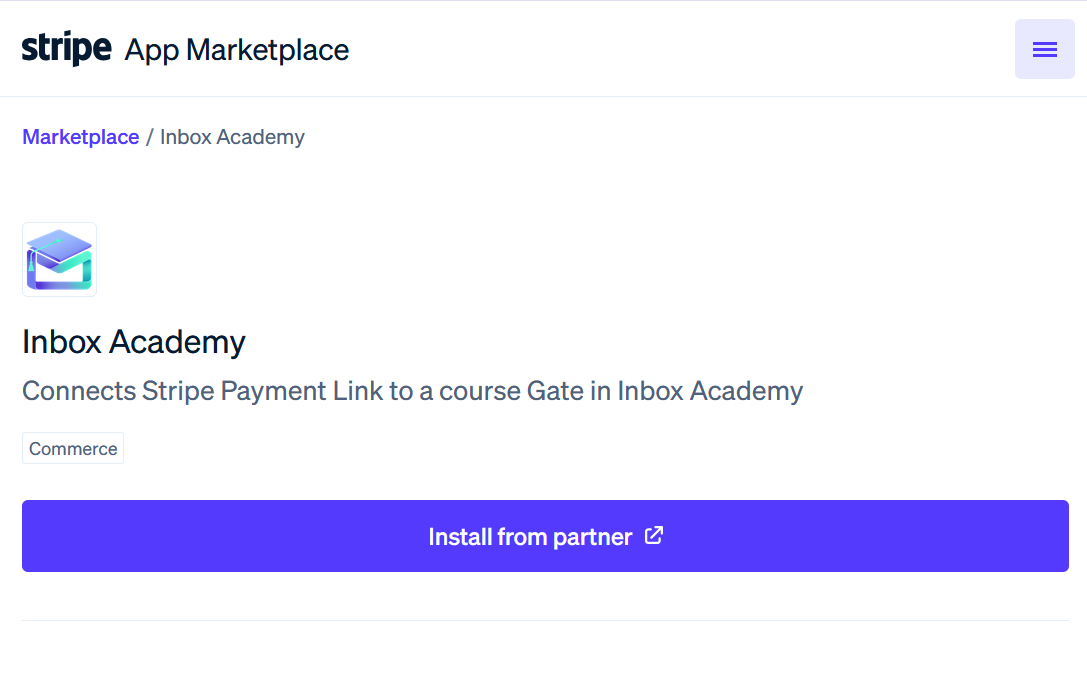
A gate is a point in a course where a learner's progress stops until something happens outside the course. Lessons before it arrive on schedule. Lessons after it wait.
When a learner reaches a gate, they receive the gate's email containing your message and, if you include one, a button link to whatever they need to do to unlock the gate. Once the gate is unlocked, the next lesson is scheduled as usual. On your course's public page, the lessons behind a gate are displayed as locked, allowing visitors to see what is free and what isn’t.
Two places to ask for payment
At enrollment. Switch the course to an enrollment gate, and new learners are held at the door. Instead of the usual confirmation email, they get an enrollment email with your payment button. The course starts when they pay. This suits courses that are paid from the first lesson.
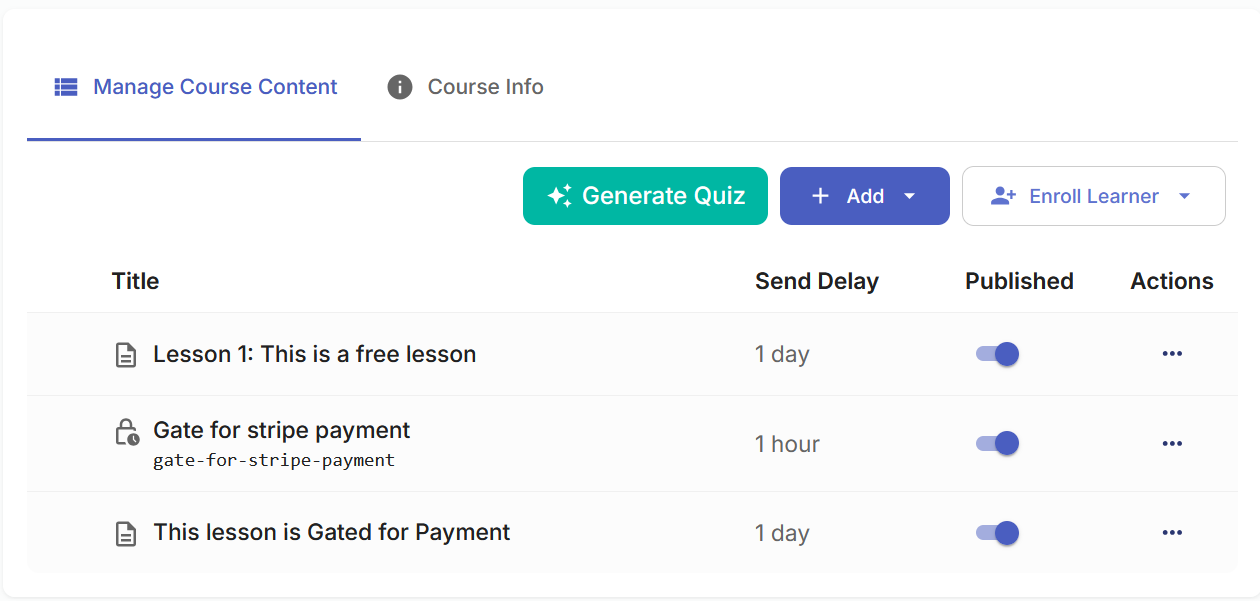
In the middle of the course. Add a gate after the lessons you want to give away. Learners get a real taste of the course first, and the ones who want the rest pay to continue. My own course works this way: the first three lessons are free, and a gate after them unlocks the rest.
Before you start: the Payment Link is yours to create
The Payment Link is created in your own Stripe account, separately from Inbox Academy. Inbox Academy doesn't create the link, set the price, or hold the product. That's deliberate: what you sell and how you sell it stays in Stripe, under your control.
So set up the link in your Stripe Dashboard first, the way you'd set up any Payment Link:
A product and a price (one-time, for most courses)
The currency, tax and payment-method settings you want
Optionally, a confirmation message after payment, such as "Your next lesson is on its way to your inbox"
Keep the link URL handy. You'll paste it into the gate in a moment.
Setting it up
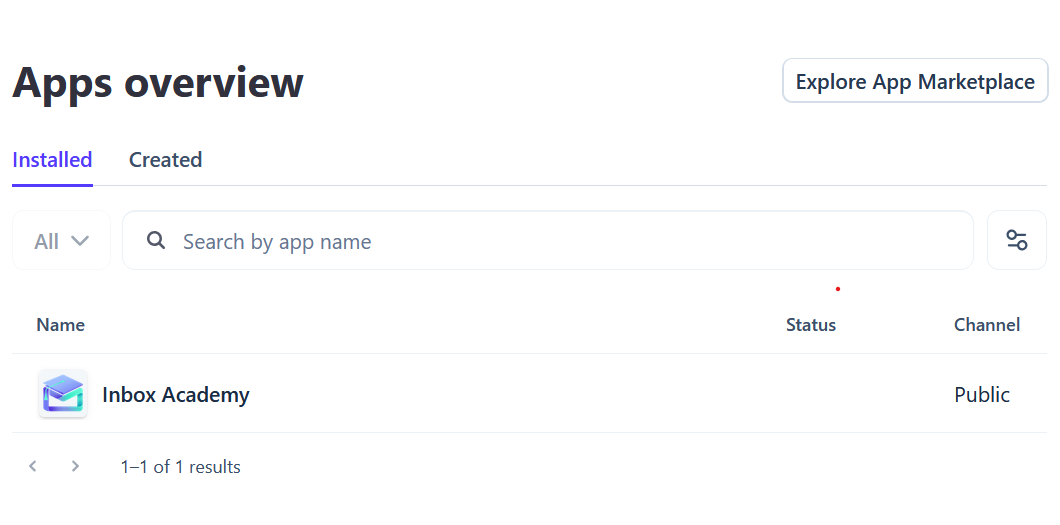
1. Install the app and connect your organization. Find Inbox Academy on the Stripe App Marketplace, install it on your Stripe account, and connect it to your Inbox Academy organization. You do this once per organization.
2. Add the gate. For a mid-course gate, add a gate where you want the free part to end, and give it a title and a short message. For an enrollment gate, go to Course Info → Edit → Enrollment & welcome emails and switch the course to an enrollment gate.
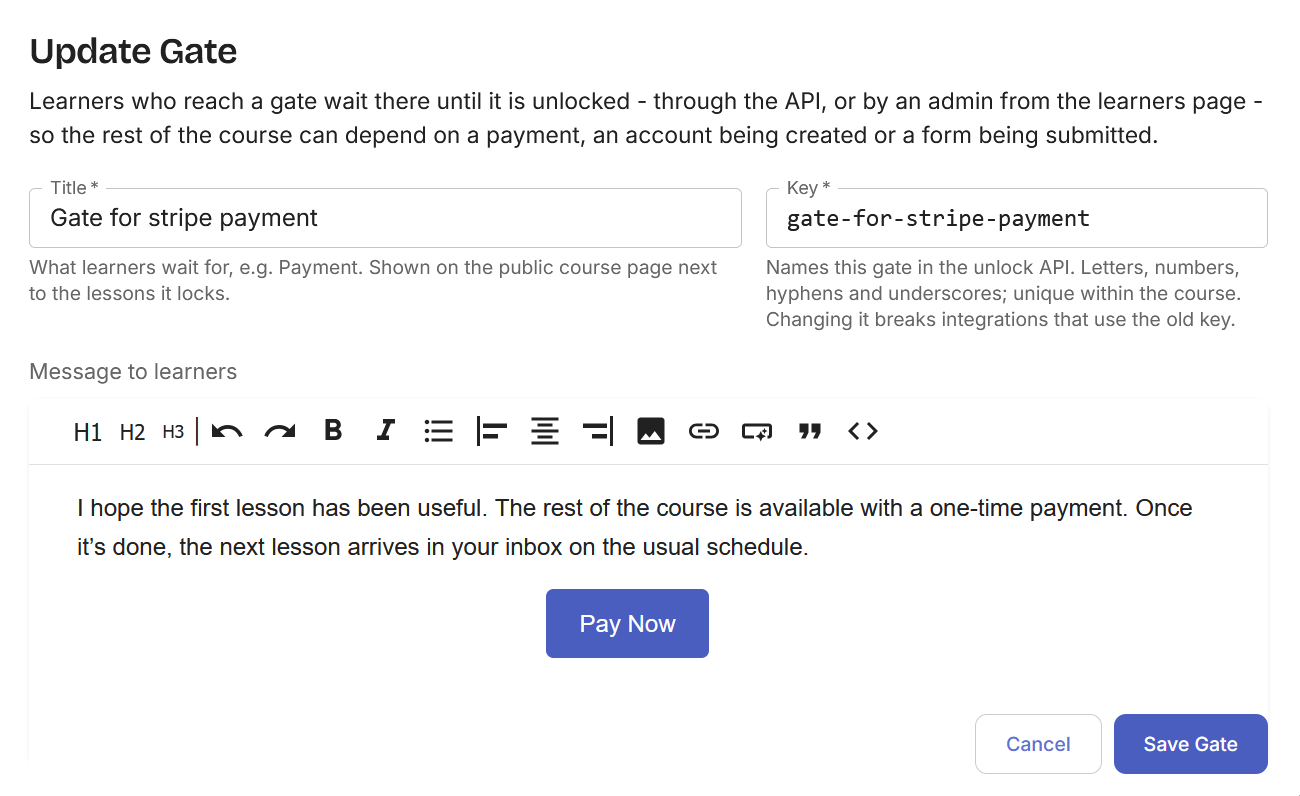
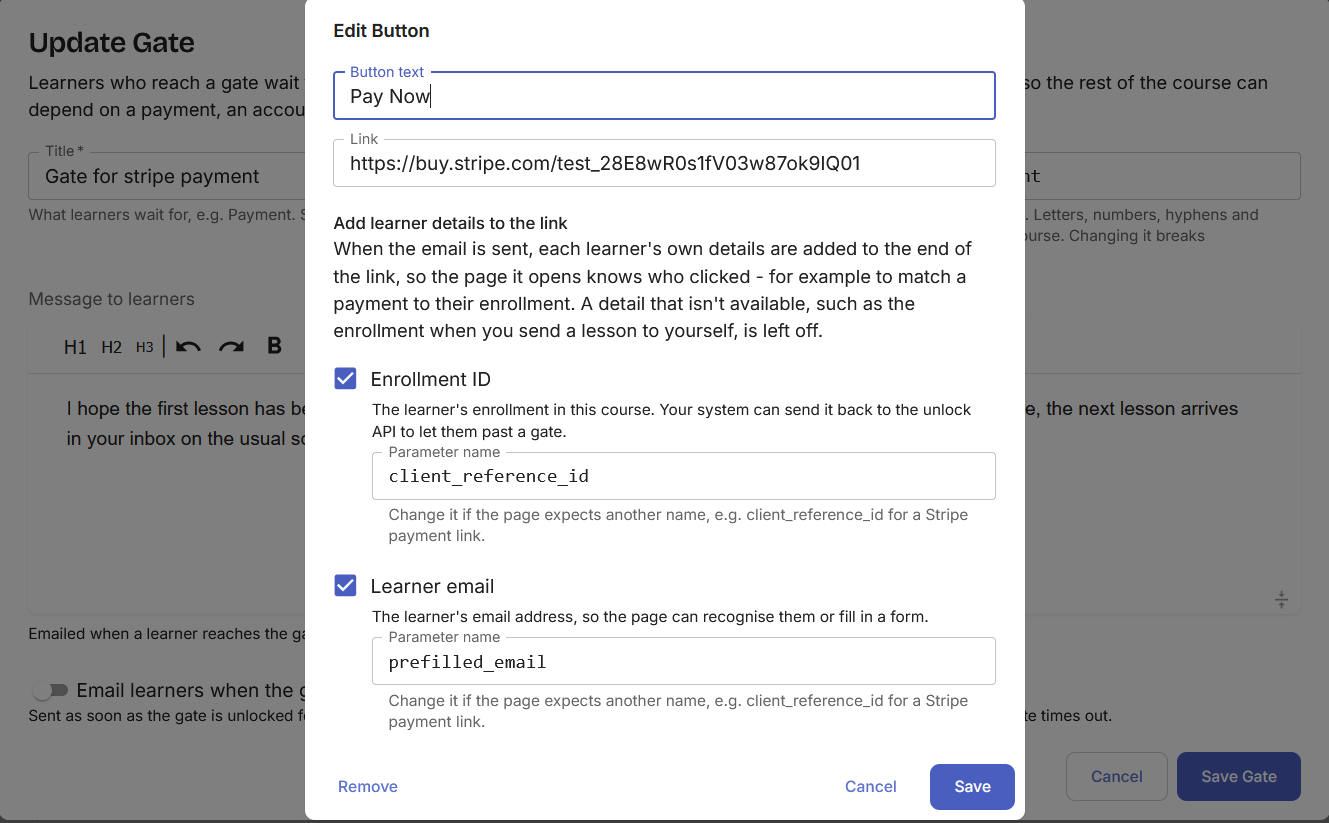
3. Add the payment button. In the gate's message, or in the enrollment email for an enrollment gate, insert a button with your Payment Link as its URL. Tick Enrollment ID and name it client_reference_id. That's how a payment is matched to the right learner, also to prefill the learners email in the stripe payment link form you can tick the Learner email and name id prefilled_email
4. Try it yourself. Enroll in your own course and go through the payment once, so you see exactly what your learners will see. To test without real money, use a Stripe sandbox. To test your live setup, create a 100% off promotion code for yourself, and allow promotion codes on the Payment Link so the code can be entered at checkout.
What your learner sees
The learner reaches the gate and gets an email with your message and a payment button. The button opens your Stripe checkout. They pay, Stripe sends them the receipt, and Inbox Academy unlocks the gate. The next lesson arrives on its usual schedule.
They never log in anywhere or create an account. The whole thing happens between their inbox and a checkout page.
Gates aren't only for payments
A gate just waits for a signal. Payment is one reason to send it, and the Stripe app is one way of sending it. There are others:
Through the API, with
POST /api/v1/enrollments/{id}/unlock/, the gate's key, and an API key with theenrollments:updatescopeThrough Zapier, from whatever app your process already runs in
By hand, from the learner's page, if you're an admin
That opens gates up to other uses: holding an onboarding course until a contract is signed, waiting for a manager's approval, or pausing until a learner finishes a task somewhere else. A gate can also have a timeout, after which the learner either continues anyway or the enrollment is deactivated.
If you wanted to unlock gates after a Stripe payment, you could always build that with the API or a Zap. The app means you don't have to. Listening for the payment, matching it to the learner and unlocking the gate are already handled.
Get started
If you already have a course on Inbox Academy, you can have a paid gate running in about ten minutes: create the Payment Link, install the app, add the gate and the button.
If you don't have a course yet, start a 14-day trial at inboxacademy.io and decide where your free part ends.